Subject line says it all.
Unfortunately it doesn’t really?
I’ve been using Wyze since 2020 And set up new Wyze devices on my Wi-Fi at least every few months and have never seen this problem.
When did you experience this issue? Is it talked about in here somewhere?
Were you using a hidden Network or something?
Or were you trying to do something like connect a 2.4 GHz camera to a 5 GHz only network? I could also see a combined network name of 2.4 GHz and 5 GHz on a router where the router isn’t effective at forcing 2.4 GHz signals onto the 2.4 GHz band, in which case it may only be trying to connect to 5 GHz because the router isn’t effectively managing the shared name correctly. That would be more of the router problem though. I’ve seen that happen (not specifically with Wyze but in general, And it only happens with specific routers).
I’m not sure anybody knew there was an issue to fix with this.
1 Like
Sorry, I will elaborate below.
1 Like
This was some time ago and I do mean quite some time ago, long before Wi-fi 6 was around even, but I wanna say Asus routers had airtime fairness and I think this might have been something that was run into when that was on. I’ve done a few searches and I’m unable to come up with anything concrete. But you did say you would elaborate so I’m gonna be holding out for that and I will follow this to see if I can help out as well. If possible post some screenshots of what it is showing you exactly that way if needed we can try to escalate it if we can to the right people and let them know exactly what’s going on.
Thanks for the replies all. There are three or four old threads here about this problem going back several years. If you do a topic search on my subject heading you will find them. After a lot of discussion of possible solutions including factory resets, firmware rollbacks etc., they all died out without any real resolution, the last of them in I think maybe early 2024. I was hoping maybe it got solved somehow in the meantime, but I guess it’s more likely my fellow sufferers just gave up.
What happens is this. With certain Cam v3’s, when you go to light them up on your network, everything goes smoothly until the wifi connection. You can see and select your wifi network, and give it the correct password, and then the cam thinks for a few minutes and you get “Unable to find specific network name,” and an invitation to re-enter your password, reboot your router, etc. etc., none of which works.
Mind you, I have about 20 Cam v3’s in two different houses and another couple dozen various Wyze devices, and I mostly don’t have any problems with any of them to speak of. Just this one. In case it matters, it’s a Cam v3 Black that I pulled out of my spare parts box along with another v3, a white one. That one connected fine, with no hesitation, at both houses. But the black one gave that same error every time I tried, including after reboots, factory resets, etc. etc.
Now it’s true that both of my networks are combined 5GHz/2.4GHz (one Deco and the other older Google Mesh), but EVERYTHING works just fine on both of them, including a wide variety of non-Wyze stuff.
Any ideas?
Cheers & happy new year.
1 Like

Camera light initially solid red, then alternating red and blue.
Long press of SETUP brings back flashing red.
Short press of SETUP produces “Ready to connect.” (Same result if long press step is skipped.)
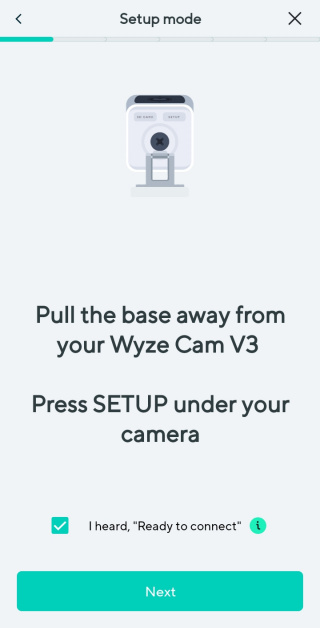
Scanning the QR code produces

And then

Then

Now camera light is flashing red/blue, for maybe a minute, then camera announces “Cannot find the specific network name” and starts flashing red, screen stays on “Connecting” for maybe a couple more minutes, then

Retyping the password of course produces no joy, because it was already correct.
In full transparency, I have not tried rebooting wifi router, but … really?
Again, I have tried all this multiple times on two different networks, on both of which another v3 of probably similar if not less recent vintage connected without drama or delay.
Thoughts, other than “C’mon, it’s a $30 device, give it up?”
And thanks again!

I would try rebooting the router, I know that’s an overused troubleshooting step but it’s because it often works with strange wifi connectivity issues. In fact I just had to do it yesterday with one of my APs as any device trying to connect to it reported an authentication failure.
Other thoughts
Is your router set to WPA2 authentication (not WPA3 or WPA2/3)?
Does your password have any special characters in it? Some of them can be problematic.
Does your router have “smart connect” or “band steering” enabled? Sometimes it will try to force your 2.4ghz device to 5ghz and since the cam doesn’t support 5, that can confuse it.
Fair enough; that is indeed the one thing I have not tried. I’ll let you know. Thanks!
Nope, rebooted the wifi network and still got the same result. Just as another sanity check I pulled out an old v2 from the spare parts bin, and it connected right up with no complaint whatsoever. I think it’s time to give it to the electronics recycling. Thanks for all the ideas.
Cannot find specific network
I relocated a v3 cam that WAS working, however, when trying to reconnect I get held up at “cannot find specific network”. I’ve tried typing it manually, verified it’s 2.4Gh but no joy.
Is there any significance to its flashing red/blue instead of just red when first plugged in?
@jrs3159, does yours do that?
Red/blue usually means it has lost its wifi connection and is trying to connect.
@jrs3159 I’d recommend trying stuff previously mentioned in this thread
Make sure both the cam and your phone are on 2.4ghz during setup
Make sure your 2.4ghz network is set to WPA2 only (not 3 or 2/3)
If your router has “band steering” or “smart connect” may need to temporarily disable that
May even want to disable 5ghz in the router completely temporarily (which would disable the band steering/smart connect too).
Thanks for your response, which I am just now seeing, sorry. If any of those suggestions were the answer, would not other v3 cams be affected by them just the same? (They are not—they all connect just fine.)
Many of these things only have an impact during setup, once set up, they aren’t a problem. So if those other v3s that are working haven’t gone through the setup process in a while, then yes it could just be affecting the one you’re trying to set up now.
Or it could be that the cam is faulty and the wifi chip is dying (or could be too far away/have interference in the area, etc).
1 Like