I have 5 V4 cameras. After a power surge 3 reconnected to the router/modem and 2 didn’t I took them down and went thru all the reconnect options including resetting to factory settings, deleting the phones from the app and tried to connect like new cameras. After all of this they still will not connect to my wi-fi. Messages say can’t connect to local network.
However, my son lives a few doors down and connected these 2 to his wi-fi network with no issues. We both have the Cox Panoramic router/modems dual band 2.4 and 5ghz bands. I assume the router/modem automatic allows for the camera to connect to the 2.4.
Thanks, not very tech savvy and sure how to locate and switch from one to the other. However, I bought a brand new V4 camera and it connected right up. The 2 that were connected when I had a power surge still will not connect. I will try and figure how to make sure the phone is on 2.4
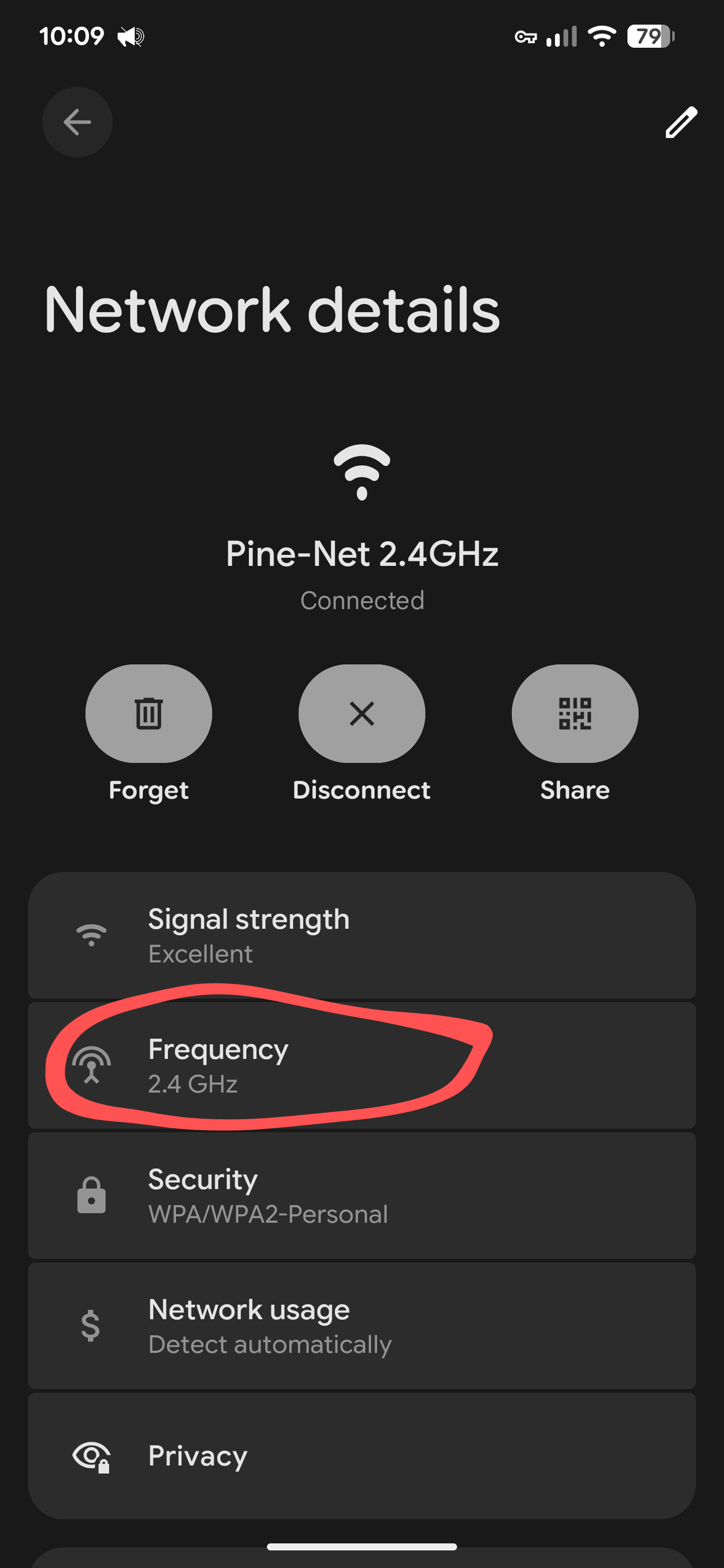
Not sure on iPhone but Android if you go to network in the menu, then click on the WiFi your connected to you get info including which frequency of WiFi
iPhone is likely similar but I don’t do Apple so I’m guessing.
This is the issue I’m encountering aswell. Power surge booted my v4 from the network and it wouldn’t reconnect. So I deleted it entirely to go through the setup process and it stalls with an error saying it’s unable to connect to the network. FWIW, it’s only my v4 that’s having this issue. I tried turning off the 5ghz band on my network and forcing my phone to use the existing 2.4ghz, but that also didn’t solve it. Interestingly, if I set up a mobile hot spot from my laptop, connect my phone to that hotspot and then run through the setup process, the v4 cam will connect. This isn’t a real solution as it only works while the hotspot is active
If you can (and maybe your son can help you with this if he has identical equipment and was successful connecting), then turning off mobile data on your phone and turning off the 5 GHz radio/band on your router/modem should force your phone onto the router’s 2.4 GHz band for its only Internet connection. I’d do that and try setup again. If you can temporarily move your Cam v4 near the Wi-Fi source, then that might also be helpful.
Additionally, I’m wondering if your son used the same power adapters and cables when he was successful at connecting these Cams to his network. Is it possible that something in the adapters/cables for these particular Cams was messed up during the power surge? Have you tried different adapters and/or cables to see if that makes any difference?
@jeshirey and @jeffrey_martin_5 have you tried a different AC power supply (or swapping them around to see if the problem follows them)? Those are typically “sacrificial lambs” when it comes to power surges, they may be partially fried, not supplying enough voltage or current.
Yes. My v4 is typically powered by a lamp socket, but I’ve been trying to get it working using a regular brick. My trouble shooting has narrowed this down to an issue with the firmware on the cam and my particular modem. I was able to add a different v4 to my network but that one was running stock firmware from early 2024. I had mine set to auto update so it was running the latest. I’m going to try manually flashing the firmware back to the oldest possible option.
Why the oldest possible? I have three V4 cams using 4.52.9.3415 (May 2025) and they have no issues. I will never turn on firmware Auto Update. The September 2025 firmware has not shown up as available for my V4 cameras yet, probably next month. I just got an August firmware update for a V3 Pro last week.
I believe one of the newer firmwares for the v4 enabled Wifi 6 on 2.4ghz, but there were some questions about whether it was properly supporting WPA3 encryption. Check your router to see if it is set to WPA3 or WPA2/3 transition mode, and also which wifi modes it supports/is allowing on 2.4ghz.
Reverting the firmware to the oldest possible version did not solve my issue. I actually dont know if the manual firmware flash was accepted. According to the Instructions here, the status light will appear purple for up to 5 minutes, and then the camera will reboot and the status light will change to blue. The status light on mine only appeared purple for 15-20 seconds. And after it rebooted, the status light went back to red. I went through the process about 10 times and it was the same outcome.
Yes, I tried multiple cards. The first was a 128GB Sandisk, and when using that one, the light would only blink purple for a split second and then the camera would go into connecting mode. After doing some searching on the forums, I noticed some people mention the card needs to be smaller. So I used a older 32gb card I had here. That one appears to have worked, in the sense that the light remained purple for longer and the camera did reboot afterwards, But the process only took 20 seconds before the camera rebooted and when it came back on, the status light was red.
Edit: So the manual firmware update did work. I connected the Cam to the wifi hotspot again, just to check the firmware version, and it does show its on version 4.52.7.0367 (July 2024) with a pending update.
@dave27 my router is supplied by my ISP, and it appears they have it locked down so I cant modify any of the security modes. For the 2.4GHZ network, the mode is 802.11 g/n/ax with a security mode of WPA2-PSK (AES). Im not sure what the other options are as the ddm (drop down menu) is greyed out, with a notice on the top stating the settings are managed automatically