Cam v4 cams won't come up on TinyCam Pro since firmware update to 4.52.9.5332

Hello all,

I just did the firmware update today on my three Cam v4’s up to 4.52.9.5332

They all seem to be working fine via the Wyze app on my phone, but ever since the update, the three v4’s will not work on TinyCam Monitor Pro for me anymore. Only the three v4’s that just updated are now not showing a picture anymore. Those camera views are giving me the “P2P failed to connect (IOTC_ER_FAIL_SETUP_RELAY)” message.
My 6 other Wyze cams (five v3’s and an OG) are still working and displaying fine in TinyCam Monitor Pro, only the three v4’s are acting up.

I tried deleting the three v4 cameras out of TinyCam Monitor Pro and then re-adding the cams figuring maybe there was a UID issue or something, and adding them again using the UID add method might help, but it didn’t. All three v4’s are still dark in TinyCam Monitor Pro displaying the same error message noted above.

I know the firmware update had a lot to do with security upgrades so is there some kind of incompatibility now where TinyCam Monitor Pro might need to make some updates on their end so the v4’s running firmware 4.52.9.5332 can become viewable again?

I went to the website for TinyCam Monitor Pro and I did happen to notice that on their list of compatible devices, Wyze Cam v4 is currently not listed anymore:

The v4’s were compatible and working up until this firmware update so I’m wondering if there is an issue they need to resolve and they have temporarily removed v4 from the list pending an update on their end.

Anyone out there experiencing this same thing or have some wisdom to share on what’s going on and maybe how to resolve it if possible? Or could be something that I might just have wait for a fix to eventually come?

The firmware update made the cameras incompatible with tinycam. The newest v3 beta does the same. The only solution currently is to flash an older firmware. If tinycam will be updated is anyone’s guess.

1 Like

That’s completely expected with any of these new firmwares that say they require a minimum app version due to security updates.

Even though the tinycam developer is a wyze employee, it is unclear if they’ll be able to implement the new security protocols or not - may want to ask in their reddit sub. I sort of suspect that Wyze working on adding RTSP support may be a bit of a compromise due to the new security breaking 3rd party apps, but I guess we’ll see how it all shakes out.

I’d downgrade back to the previous firmware and disable auto updates for now.

1 Like

the tinycam author resides on reddit. you’ll have to ask him there. i just use android tablets running the wyze in landscape mode were i can watch 4 cams at once and switch across like tinycam. you’ll just have to create favorites. it’s pretty easy.

1 Like

Thanks for the info.

I’m going to do some looking around reddit when I get a little more time later tonight and see what I can find out regarding the possibility of a tinycam compatibility update coming (or not).

In the event I want to go back to the prior firmware version for the v4’s, can you refer me to some step-by-step instructions on how to do that? I have never had to do that before so hopefully it’s not that difficult.

I would be doing it on a Samsung Galaxy S24+ running One UI version 8, Android version 16 and Wyze app version 3.9.0(739) in case it matters.

Thanks.

https://support.wyze.com/hc/en-us/articles/360031490871-How-to-flash-your-Wyze-Cam-firmware-manually#Accordion-wyze-cam-v4-0

If you’re using 3rd party/non wyze apps with the cams it is always best to disable automatic updates and check the app’s forum or release notes etc, and make sure there are no issues before updating anything. Some of the cams can’t be downgraded, and sometimes even the ones that can be, there will be an update that you are now “stuck” at and can’t go lower.

1 Like

Exact same just happened to my V4s.

Yeah, but if you try to watch 2 instead of 4 it stacks them on top of each other instead of side by side. Top is wyze. Bottom is tinycam.

Tiny cam is changing the aspect ratio/distorting the image to allow that to work.

If you prefer Tiny cam, you need to downgrade the firmware and disable auto updates. When using these cams with 3rd party (non-wyze) software you can’t just update firmware when it comes out, you need to make sure the software maker confirms it is compatible first.

Thanks for the info.

I never thought to consider something could happen with tinycam compatibility prior to loading the latest firmware update that caused all this. I always had the Wyze app set to ask before updating firmware, not automatic updating. I initiated the updates myself but since I never had this issue happen before I didn’t even think to consider it as a possibility.

I’m going to guess that this same issue will also happen when v3 cams get their next firmware update since beemgee notes above in their post that the v3 beta is causing this same issue to happen with tinycam. So when I see that firmware update try to push through I will not let it go through.

Review the firmware release notes, any that says it updates anything to do with security is likely to break connections to 3rd party software. But other things can cause it too.

I think disabling Automatic Update can be prudent, and it’s something I’ve tended to do with Wyze devices since an update a couple of years ago borked Video Doorbell v2 notifications for a while. Something else you might consider for the future is just updating a single device’s firmware—rather than, for instance, all three of your Cam v4s—when you see it available, then see how that works out for a day or so. If you find that it breaks something (third-party or otherwise), then you have only a single Cam that you’d need to flash back to an earlier firmware. I think a lot of other users tend to do that as well as checking announcement topics in Wyze News (and maybe Beta) for any potential “gotchas”.

Were you able to flash your Cams?

I attempted to flash one of the v4 cams several times and it is refusing to accept the prior version.

I was using a brand new SanDisk 64GB still in the package never used before.

I followed the flashing directions exactly.

I downloaded the prior firmware .zip file

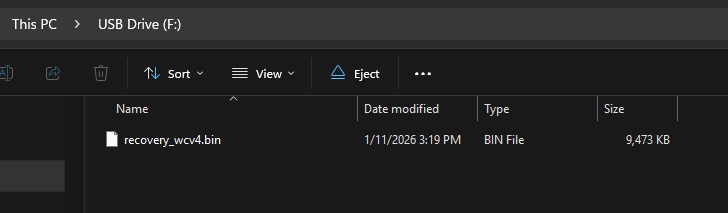
I extracted the .bin file and loaded it onto the SD Card, making sure it was the only file on the disk

I unplugged the camera, took out the 256GB SD Card that I already had in there for 24/7 recording, replaced it with this one that had nothing but the .bin file on it, then plugged the camera back in while simultaneously holding down the setup button for six seconds before releasing (the directions said 3-6 seconds), then let go of the setup button.

I did not get a purple light like the instructions said I would. It briefly alternated between red/blue lights and then about no more than 10-15 seconds later, the camera came back online still with the most recent firmware on it.

I unplugged it again, took the SD Card back out, erased the small amount of video recording that was on it so the .bin file was once again the only single file on it, and repeated the instructions over again. Still no dice.

I tried erasing that .bin file and copying another copy of it onto the SD Card again just in case it was a bad copy and repeated everything again. Still no dice.

I’m pretty sure I’m following the flashing instructions exactly as it says and the camera is refusing to load and run the prior version.

I finally just got too annoyed and put the original 256GB SD Card back in it, mounted it back up on the house and gave up. Within seconds of plugging it back in, it was back online and working fine again (just not via tinycam).

Unless I’m doing something wrong and I don’t know it, the camera is refusing to let go of the current version and load the previous one.

As dave27 noted above in one of his previous posts, I’m wondering if I might be “stuck” with not being able to go back, unfortunately.

Oh well. At least it’s working ok where it’s supposed to, within the app.

That’s probably your issue. Either find a card that is 32GB or less, or temporarily partition that 64GB card to 32GB (or even 8GB). You need to format it to FAT32, which will be the default for 32GB and smaller cards.

Then drag the file onto it and try again.

While it is possible to format cards larger than 32GB to FAT32 it probably won’t work for the firmware recovery process so I wouldn’t go that route.

1 Like

Possibly, except for this:

Note: We recommend using a 32 GB microSD card in format FAT32 for firmware flashing.

It’s likely the size and format (exFAT is the typical default for your 64 GB card) that’s queering your flash attempts. If you use a proper card (32 GB or smaller and formatted FAT32), then you’ll probably have success, because it seems like you’re following the instructions otherwise.

You’re not. Successful flashes back to v4.52.9.4188 have been reported here:

1 Like

Ok, I finally got it to work.

I have one of the three v4 cams back on the prior version and it’s showing on tinycam again.
I used Rufus software to partition the 64GB SD Card, format it FAT32 and give it a volume name. Then once I loaded the .bin file back on it, the first time it still didn’t work, I was ready to freak out again, then I repeated the exact same thing I did the first time and for some reason that time it worked even though what I did was exactly the same as the first time.

I’ll have to wait to do the same for the other two v4 cams. The one I just fixed was right outside a second floor window so it wasn’t that difficult to just lean out of the window, grab it and bring inside, and then mount it back out there.

The other two v4 cams are are outside mounted in spots not nearly as easy to get to, one will require a ladder and it’s winter in Connecticut right now so I have to watch where I position it so it doesn’t sink into the soft ground or slip on ice and slush which is all around the area I have to place the ladder. Wish me luck. This will be another project for another day. It’s already dark and below freezing out again now.

But at least now I can just go directly to the camera and get the firmware rolled back and I know how to do it and I know it will work, I don’t have to spend about 24 hours trying to figure it out from square one.

Thank you very much to everyone who helped and provided their wisdom to get it done.
I will keep you informed on how the rest of it goes once I get a chance to continue with it.

Yeah I’ve seen people mention that sometimes it takes a couple tries, the timing of powering it on and holding the button can be a bit tricky (really with any hardware and trying to get into the bootloader).

For future reference, you can use windows Disk Management to create and format the smaller partition, but the end result should be the same. Rufus is typically used when you want to force a FAT32 format on a partition that is larger than 32GB (which performs terribly especially on SD cards) but I think even a FAT32 formatted 64G partition probably wouldn’t work right with these cams.

I keep some old 2GB and 8GB SD cards and thumb drives around for stuff like this, but a small partition on a larger drive usually works fine in a pinch too.

2 Likes

This is the second post in the past few days I’ve read where someone mentioned using Rufus as a formatting tool.[1] I’ll have to keep that in mind as part of a potential solution for Windows users in the future. I’m glad you had success with it! Thanks for sharing that! :+1:

:crossed_fingers:


  1. This is the other one. ↩︎

2 Likes

I’ve used this to format 64GB cards to FAT32 numerous times. Just click on the picture and go.

I no longer have a need to do that but it is good to have available.

2 Likes

Same thing happened to me with the V4 and latest its latest update. I could not longer see that cam with Tiny Cam Pro. I rolled back the firmware a day later Luckily, the cam was easy to get to.
I have since disabled auto update on the firmware.

I just bought a brand new Wyze Dou Cam Doorbell. Anybody know if I can stream that on Tiny Cam Pro?
I am debating whether I should keep it or return it and just stick with my Doorbell V1.